¶ Znuny Ticket System — First Steps (Quick Guide)
Original document: Kurzeinführung Ticketsystem Znuny (German)
Version timestamp in original PDF: 2026-01-21 23:00
Target audience: Znuny agents who are new to working with the ticket system
Support / questions: BOKU-IT Hotline — boku-it@boku.ac.at
Try things out — but at some point, agree on team rules.
You may be surprised how differently colleagues use the ticket system.
Give yourself a phase of curiosity and experimentation to discover how this tool can make daily work easier.
After an initial trial period, it is a very good idea to agree on shared rules in a team meeting.
¶ Contents
- Locking a ticket (“I’ll take care of it”)
- Replying
- Closing a ticket
- “Pending / Wait” as a reminder
- Notes — the universal helpers
- Changing the owner (handing over responsibility)
- Moving to another queue (handing over to another team)
- Notifications to your personal mailbox
- Entering vacation / absence
- Frequently asked questions
¶ 1) Lock a ticket (“I’ll take care of it”)
You can access the ticket system at: https://helpdesk.boku.ac.at/
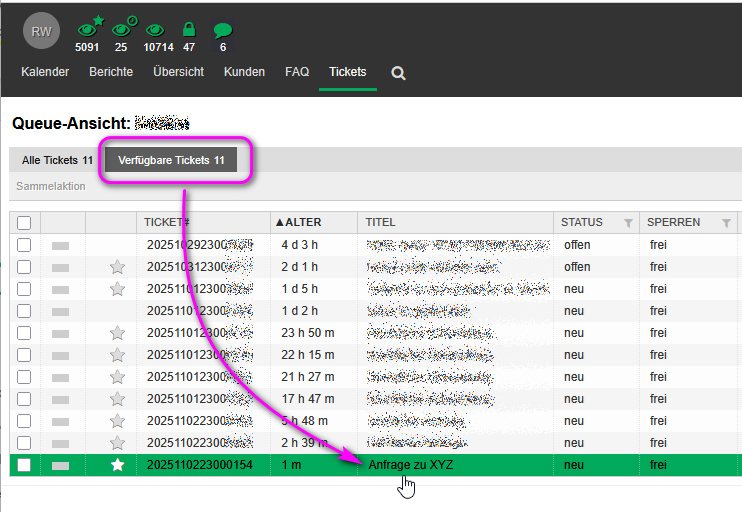
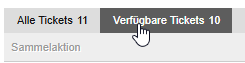
For day-to-day work, the tab Available tickets is the most relevant: it shows requests that should be processed when you are on duty.
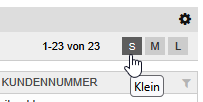
For readability, it can help to choose a smaller list size (e.g., Small or Medium).
When you want to look at a specific ticket (e.g., subject “Request about XYZ”), click it to open.
¶ Why locking matters
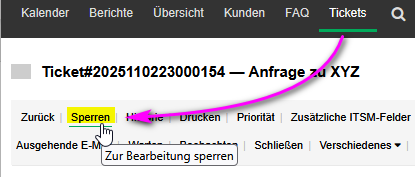
If you decide to work on a ticket, lock it to signal to your colleagues that you are handling it.
This is important — otherwise you might be drafting an answer while a colleague already answers by phone. That creates duplicate work, or even worse: conflicting information.
A useful team rule is:
- Do nothing before locking the ticket.
- Put differently: always lock first — always.
Locking tells your colleagues: “I will continue working on this ticket.”
Practical effects:
- The ticket no longer appears under Available tickets, giving colleagues a clearer view of what still needs someone’s attention.
- Locking does not mean you must handle the ticket forever:
- You can hand it over to another colleague if they are better suited.
- If you are unexpectedly absent, colleagues can still take over.
- Locking does not make the ticket invisible to others:
- It remains listed under All tickets.
- Colleagues can still read it and add helpful notes.
¶ 2) Replying
Very often you will reply right away — with:
- the solution,
- a follow-up question, or
- information that it will take longer.
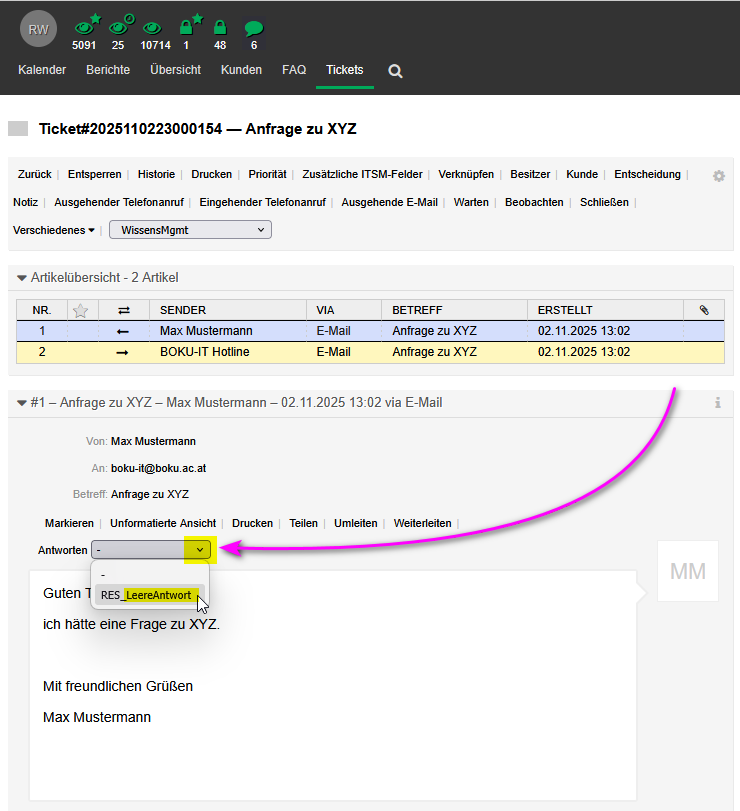
To do this, click the dropdown menu next to Reply.
Why is there a selection? Because you can store pre-written reply templates there, which can save time in daily work.
Often you will choose Empty reply and write your own message.
¶ 3) Closing a ticket
If you (or a colleague) still need to do something, set the next status to open so the ticket remains visible in the queue — ideally still locked by you.
Rule of thumb:
- Agents still need to do something → keep the ticket open.
If you have answered the question, or you can’t proceed because you first need a response to your follow-up question, close the ticket for the sake of overview and queue hygiene.
There is no advantage in keeping a ticket open for months while waiting for an answer — but it makes the queue confusing for colleagues.
When the customer replies, the ticket will open again automatically, so you do not need to keep it open “just in case”.
Rule of thumb:
- Agents don’t need to do anything right now → close the ticket.
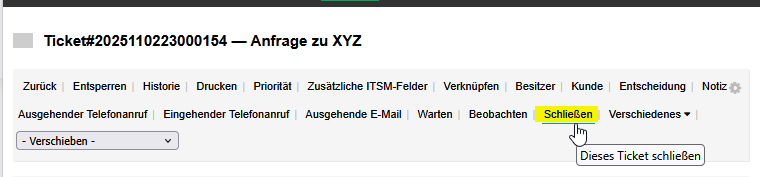
You can also close a ticket directly. This often happens because a simple “Thanks!” from the customer can reopen your ticket again.


¶ 4) “Pending / Wait” as a reminder
Example: You receive a request, but you must first wait for a supervisor’s decision or for another event.
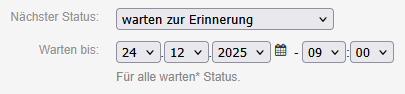
In that case, it can be very helpful to ask the ticket system to send you a reminder email in:
- one week,
- one month, or
- even half a year.

¶ 5) Notes — the universal helpers
Notes in the ticket system are extremely useful — and something you typically don’t have in a shared mailbox.
With notes, you can:
- track which parts of a request you have already completed (no need to remember everything),
- document additional information you obtained by phone,
- receive tips and information from colleagues right inside the ticket,
- hand over tickets with full context already documented:
- fewer follow-up questions,
- fewer misunderstandings,
- less duplicated work.
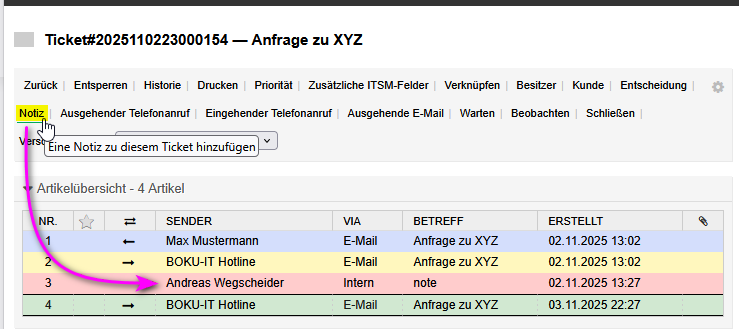
Color coding in the UI:
- requests appear in blue,
- automatic replies appear in yellow,
- your replies and other agents’ replies appear in green,
- notes appear in light red.
¶ 6) Change owner — hand over responsibility
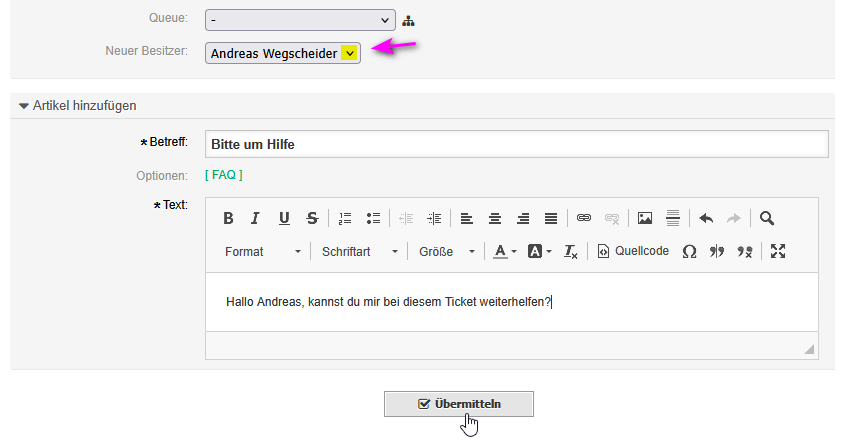
You work as a team, so you can hand a ticket to a colleague by changing the ticket owner.
Conversely, you can also set yourself as the owner if you want to take work off a colleague.
Ideally, your team agrees on rules to distribute workload. In almost all cases, adding a note is helpful.

¶ 7) Move to another queue — hand over to another team
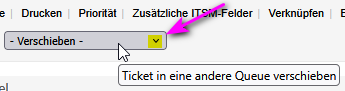
Alternatively, you can move the ticket to another queue and thereby hand it over to a different team.
¶ 8) Notifications to your personal mailbox
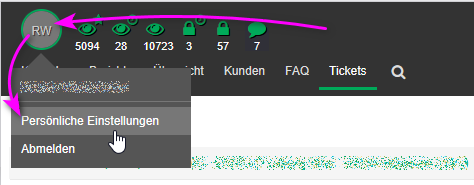
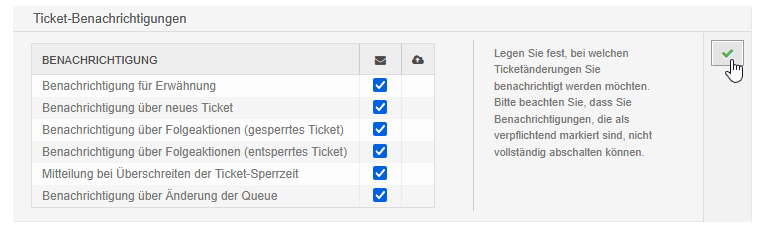
To stay informed about what happens in your queues, set up notifications:
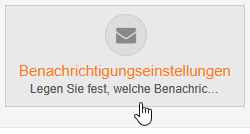
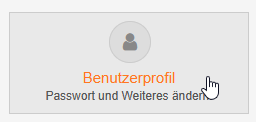
Personal settings → Notification settings
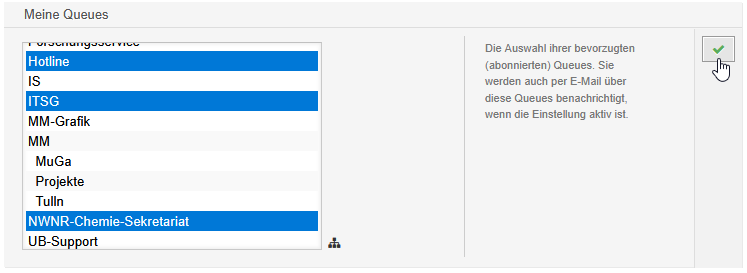
Then select the queues you are interested in. If you need multiple queues, use Ctrl to multi-select.
At the beginning, it’s fine to enable notifications generously. If later you realize fewer notifications are enough, you can adjust anytime.
¶ Watching a ticket & ticket history
¶ Watch a ticket
If you are particularly interested in a ticket’s further progress, you can watch it. You will then receive notifications when agents add notes or when customers ask follow-up questions.

¶ History — what has happened so far?
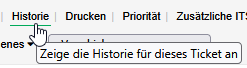
Sometimes you want to know exactly what “journey” a ticket has already been through. The History view helps with that.
¶ 9) Enter vacation / absence
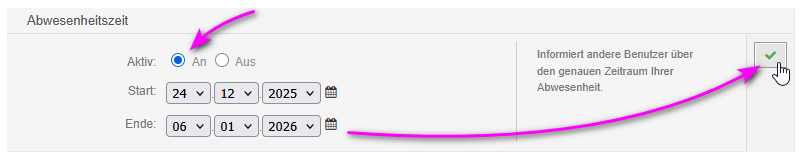
Support your colleagues by recording your absence not only in TimeTac and your GroupWise calendar, but also in the ticket system.
This helps avoid:
- colleagues handing tickets to you while you are away, and
- customers waiting weeks for an answer because the ticket was assigned to an absent owner.

¶ 10) Frequently asked questions (FAQ)
¶ Where do I find closed tickets?
Use Search to find closed tickets.
¶ Can I delete requests, replies, or notes?
No. This may feel unusual at first, but it ensures nothing can get lost. In a shared mailbox, emails can be deleted while someone else still needs them — not so in the ticket system.
¶ Can I connect two tickets that belong together?
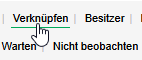
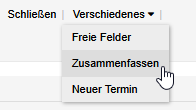
Yes, in two ways:
- Link: tickets are loosely linked; links can be removed later.
- Merge: tickets are merged into a single ticket; this is not reversible.

¶ A request contains two different topics that should be handled by two different agents. Can I split the ticket?
Yes.
¶ Can I reopen a ticket that was closed by mistake?
Yes — but only via workarounds. There is no single button to reopen a closed ticket.
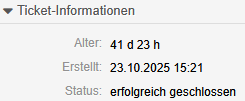
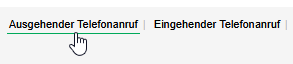
In principle, you can simulate a customer interaction (e.g., act as if you called the customer or the customer called you). That will open the ticket again.
If that feels too awkward, you can also forward an email to yourself and set the next status to open.


¶ Can I see which queues and owners a ticket has been in?
Yes — you can follow this in the History, though it takes some practice to read it comfortably.
¶ Can I send a request to the ticket system in CC?
Yes, no problem.
¶ Can I send a request in BCC (blind copy)?
No. The email will be delivered to the ticket system, but it cannot be assigned to the correct queue. It will land in the BOKU-IT hotline queue as the default queue.
¶ Can I write from the ticket system to other service mail addresses that are hosted in the same ticket system?
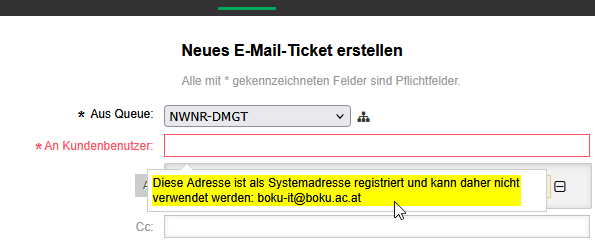
Unfortunately not.
¶ Can I write to multiple service mail addresses that are hosted in the same ticket system?
Unfortunately not. The email is delivered to exactly one queue.